Saturday, January 26, 2013

Frequently Asked Questions - GSam Battery Monitor

Why do some Apps show higher usage than I would expect?

If you are fairly confident that an app really isn't using as much power as GSam Battery Monitor reports, it could be a problem with how Android reports it's sensor usage.  Some devices coupled with certain levels of Android don't correctly report sensor usage by apps.  Specifically, it appears that an app has continuously used a certain sensor (such as the accelerometer), thereby triggering a very high power drain relative to other apps.    So if your app is showing that it has a high sensor usage - but you know it doesn't, then go into Preferences -> Device Power Profiles -> Include Sensors.  Uncheck this (do so when you are plugged in).  

Things should start correctly showing usage.  Unfortunately it means that the app can't take sensor usage into account, but if your phone isn't accurately reporting that to begin with, it's better off not included.

The notification icon doesn't update, and I have to open the app to see the latest.

The battery monitor has to run in the background to keep posting the latest battery stats to your notification bar.   Things such as task killers, or memory cleaners will stop the the background service.  It will restart on it's own, but if it gets stopped too many times in a certain time span, Android will lengthen the restart time.  Android itself will also stop background tasks automatically when it needs resources (hence why task killers are not a good idea - Android already does this).  If your phone is running too low on resources and has lots of apps competing for these resources, the battery app will get stopped by design.

If you want to override this behavior, enable the following preference:  Preferences -> Device Power Profiles -> High Priority.   Do this with care though.  It sets GSam to run in a mode where it will only get stopped if the system is really running low on resources.  If you don't have an update problem, don't enable this.

There are other reasons it could be happening - but try this first.  If this still doesn't resolve your issue, please contact us so we can help!

My tablet reports Phone usage - but it doesn't have a phone.  Why?

Some device manufacturers don't always correctly honor Androids API to determine if a device has Telephony support or not (that's you Nook).   Please email us and let us know the specific device - we'll update a table of specific devices so that it reports things correctly for you!

Sunday, January 20, 2013

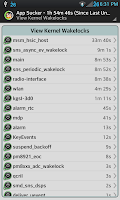
Support for Kernel Wakelocks

Version 2.28 of GSam Battery Monitor has added support for displaying Kernel Wakelocks.  Kernel wakelocks are a very advanced feature, and are not intended for your average user.  Indeed, I see so many users getting confused by them in forum posts that I have resisted the urge to add them in.  They are often unique per phone / manufacturer, and a high wakelock time is not necessarily indicative of a problem.

All that said, kernel wakelocks are very useful for folks trying to diagnose custom ROM problems.  If you're running a custom ROM and are seeing battery issues, kernel wakelocks are very useful, and can help the ROM developer understand what is going on.  For people using stock ROMs they are useful to simply understand how their phone usage affects their battery life, however this takes a lot of understanding and often a lot of research reading code to understand what a certain wakelock does.

So - use with caution.  Click on the wakelock and select the Google Me button to do a quick google search on the wakelock.  Most likely this will lead to an XDA-developers forum post by somebody using Better Battery Stats (great App BTW) to view their wakelocks.  Sometimes the info is informative, but more often than not they are red-herrings and very un-useful.  Things such as 'X Wakelock is killing my battery!!!!!!'

Remember:  Just because a kernel wakelock has a high value, doesn't mean there is a problem!  The wakelock may be occurring while the screen is on (in which case who cares)

When to look at kernel wakelocks:  When your 'Held Awake' usage is high, and your Kernel has the bulk of it.  In that case, dig into the kernel wakelocks.   If your normal apps account for most of the Held Awake time, then you can safely ignore the kernel wakelocks.